
Mudiri Clinic Manager Walkthrough — Real Screenshots of the Windows App
Mudiri Clinic Manager — Clinic Management Software
See the real UI: reception queue, today’s appointments, patients, accounts and inventory — plus the YouTube demo and a direct buy link.
If you need Windows clinic software that runs offline, with no monthly subscription and no downtime when the internet drops — this page is a walkthrough with real screenshots from inside Mudiri Clinic Manager. The video at the top is the live demo; the images below show every main screen on its own.
Decide fast whether this UI fits your clinic day, then buy from the shop without a sales call.
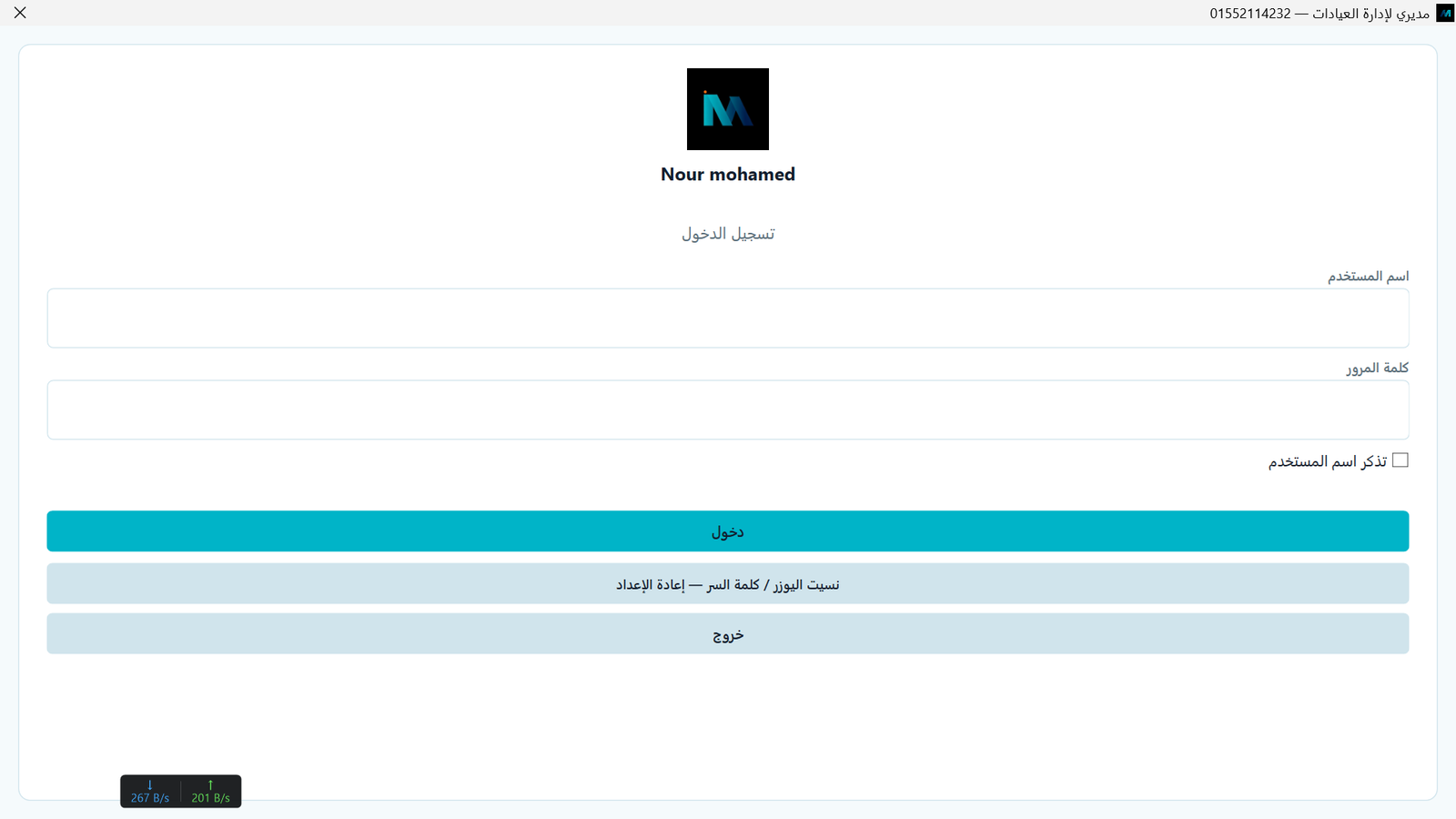
Login — starting the day
Clean sign-in: username, password, remember username. Built for clinics where more than one role (manager / reception / doctor) shares the system.
Reception & queue — the daily core
Who is with the doctor, who is next, who is still waiting. The queue shows waiting patients and statuses (inside / waiting / done / no-show), plus quick registration for new or returning patients on the same screen.
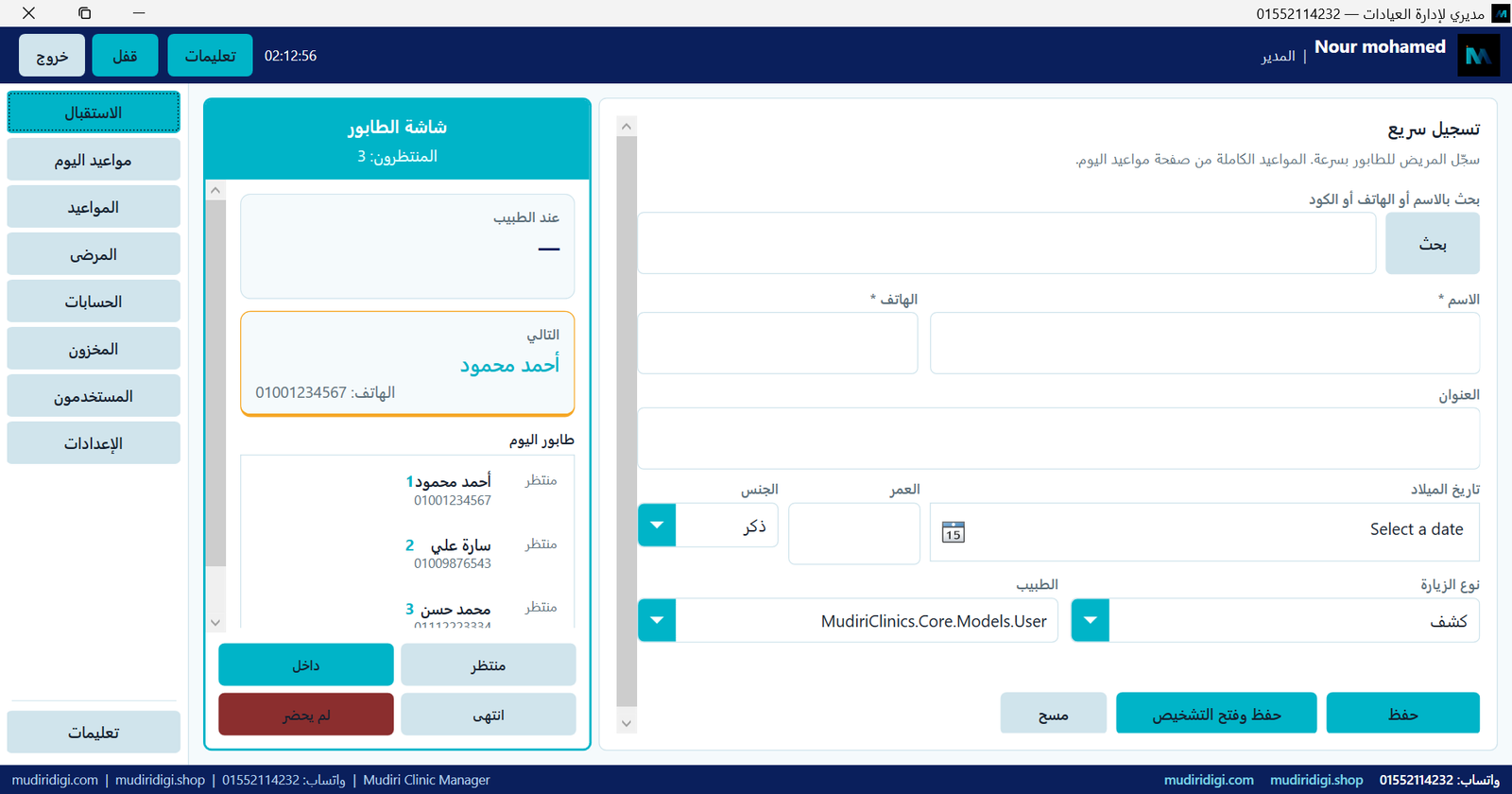
This is the screen that proves the product is operational — not a feature list. If your reception is busy, start here.
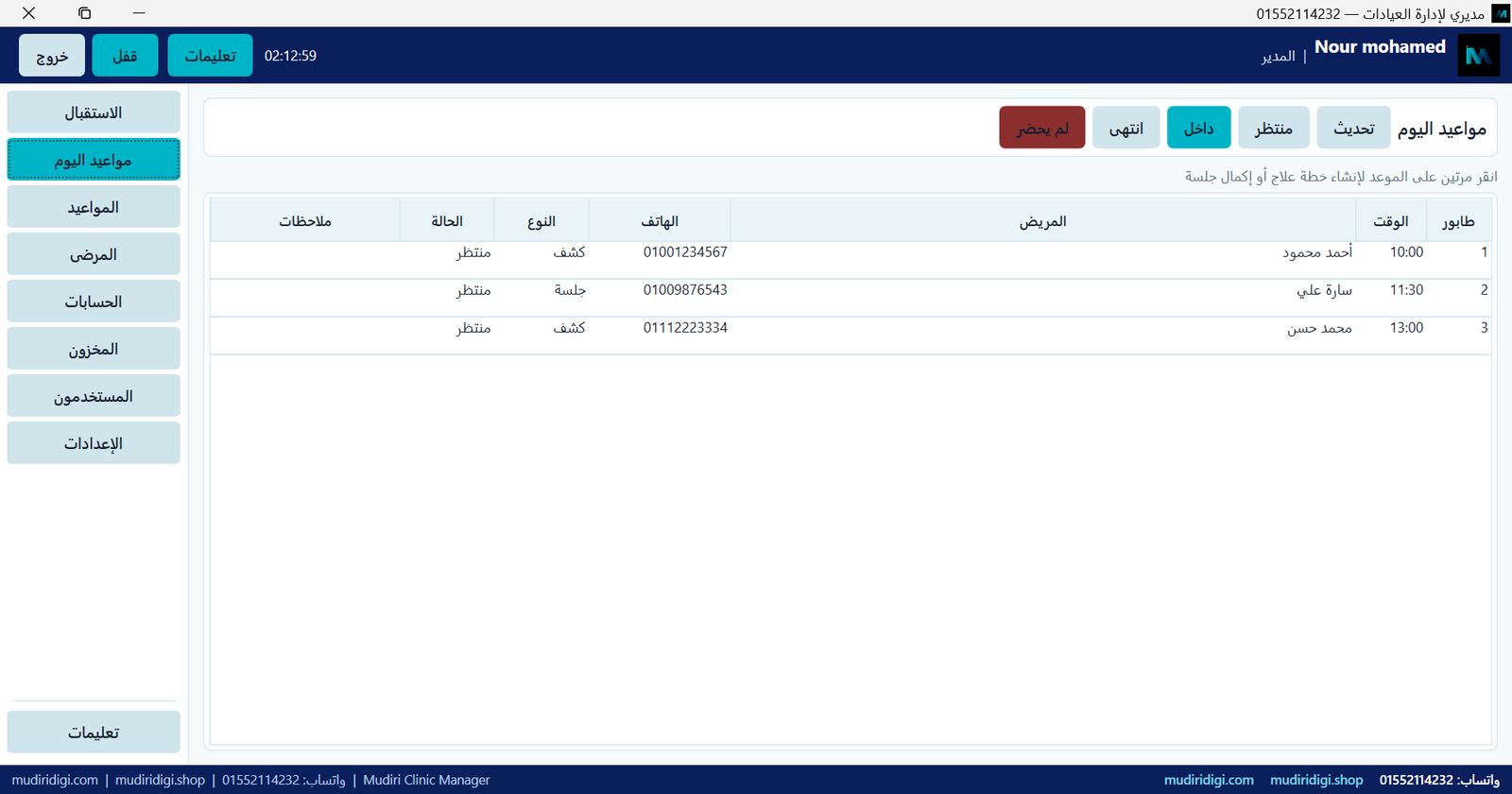
Today’s appointments — the schedule at a glance
Time, patient, phone, visit type (exam / session), and status. Update status from the toolbar without leaving the page.
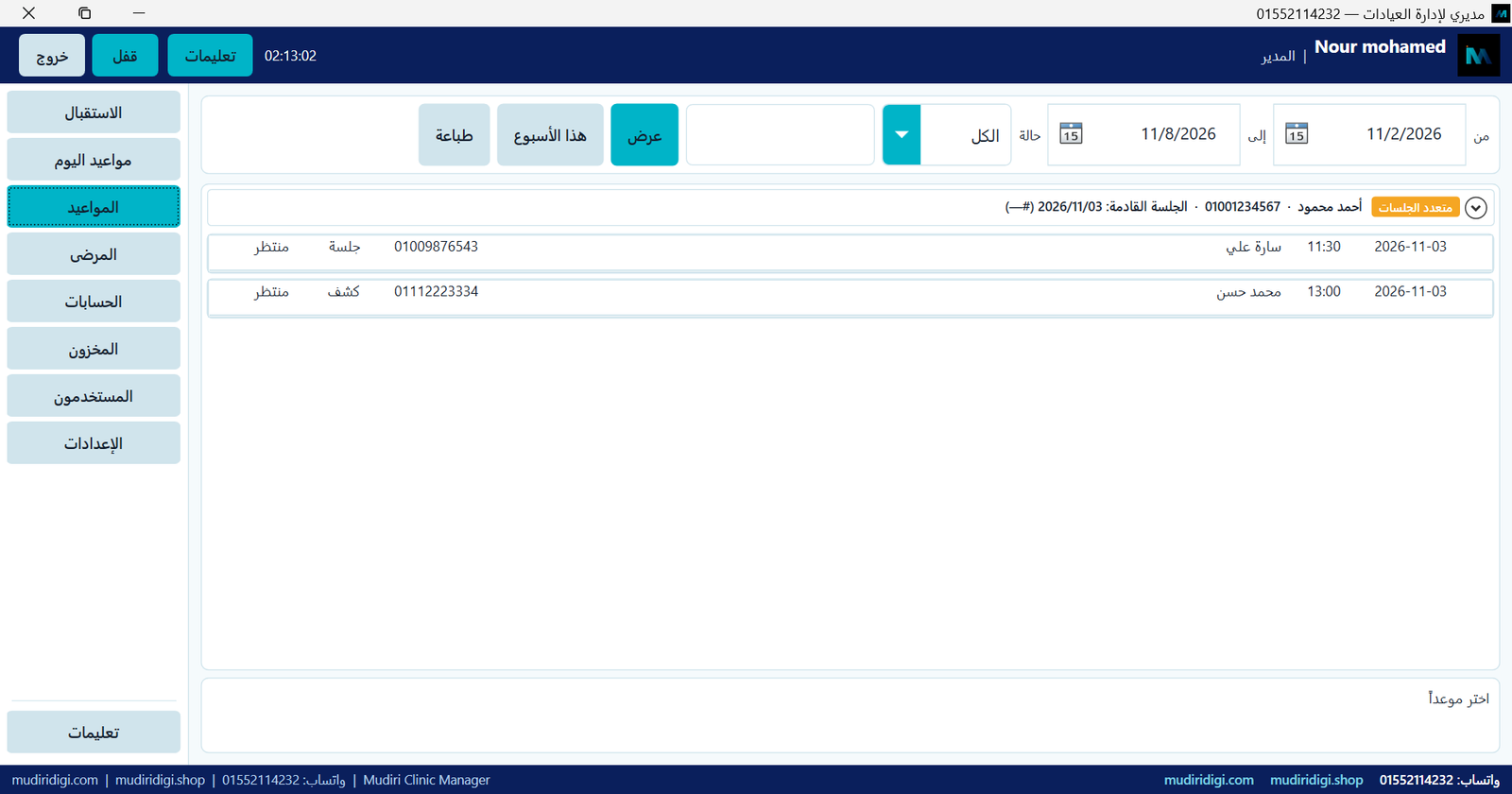
Appointments — beyond a single day
Date-range view with search and print — for weekly follow-up and multi-session plans, not only “what happens today”.
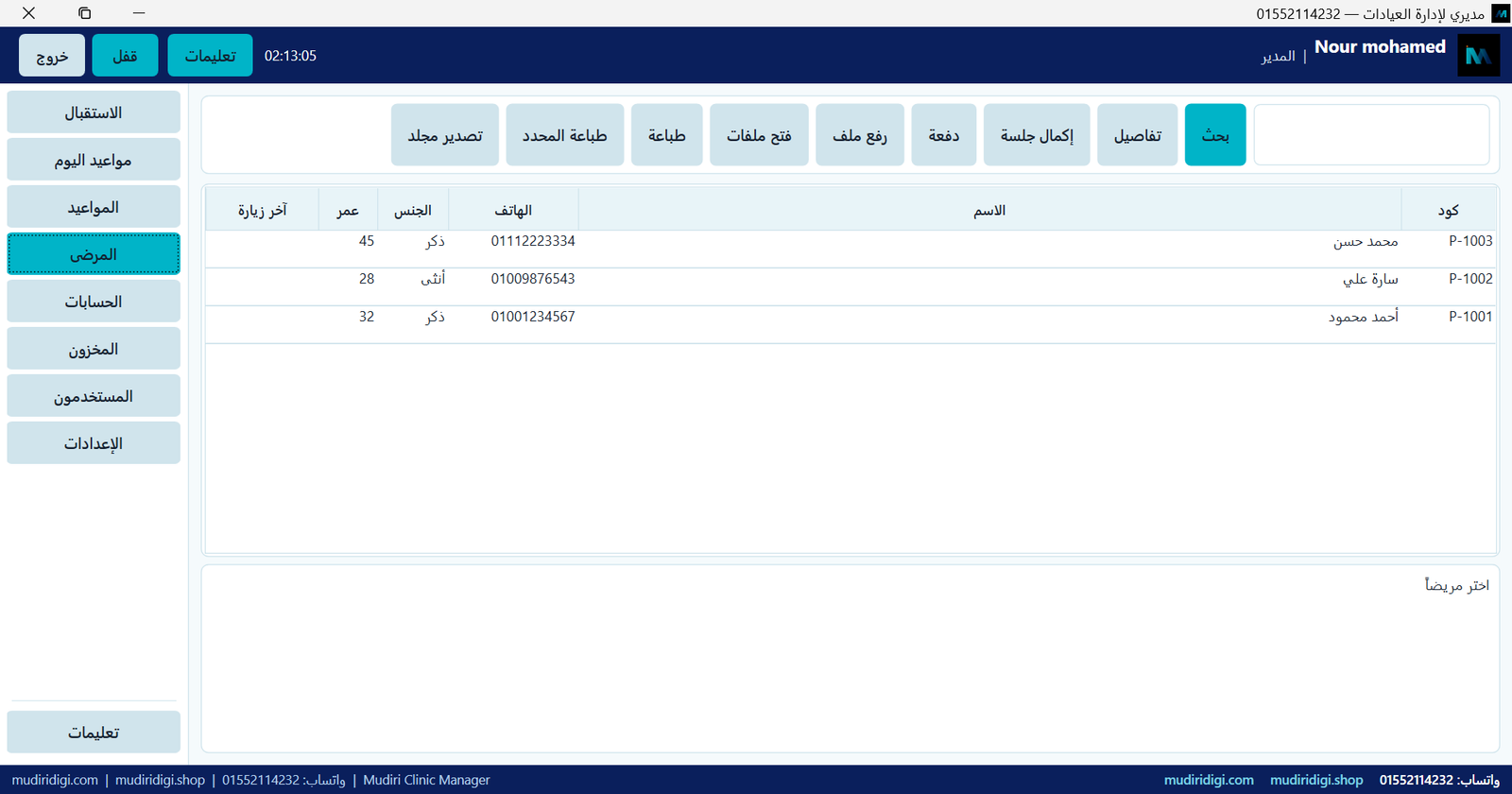
Patients — one record, one place
Patient code, name, phone, gender, age — with details, complete session, payment, file upload, and print. This is how you stop hunting through drawers.
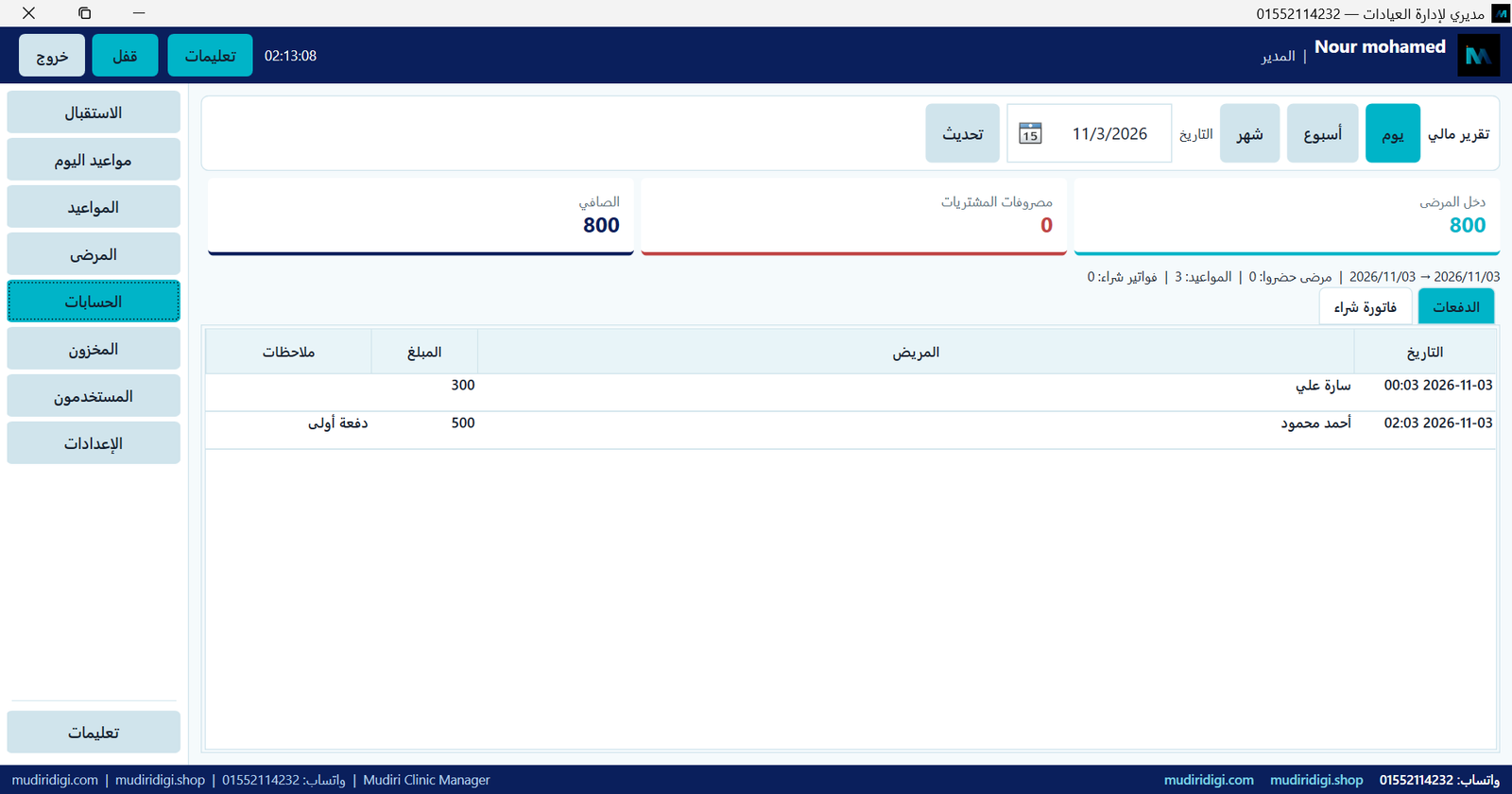
Accounts — today’s income and net
Patient income, purchase expenses, and net — plus the payment log. If you still close the shift on paper, this screen surfaces the gap in the first week.
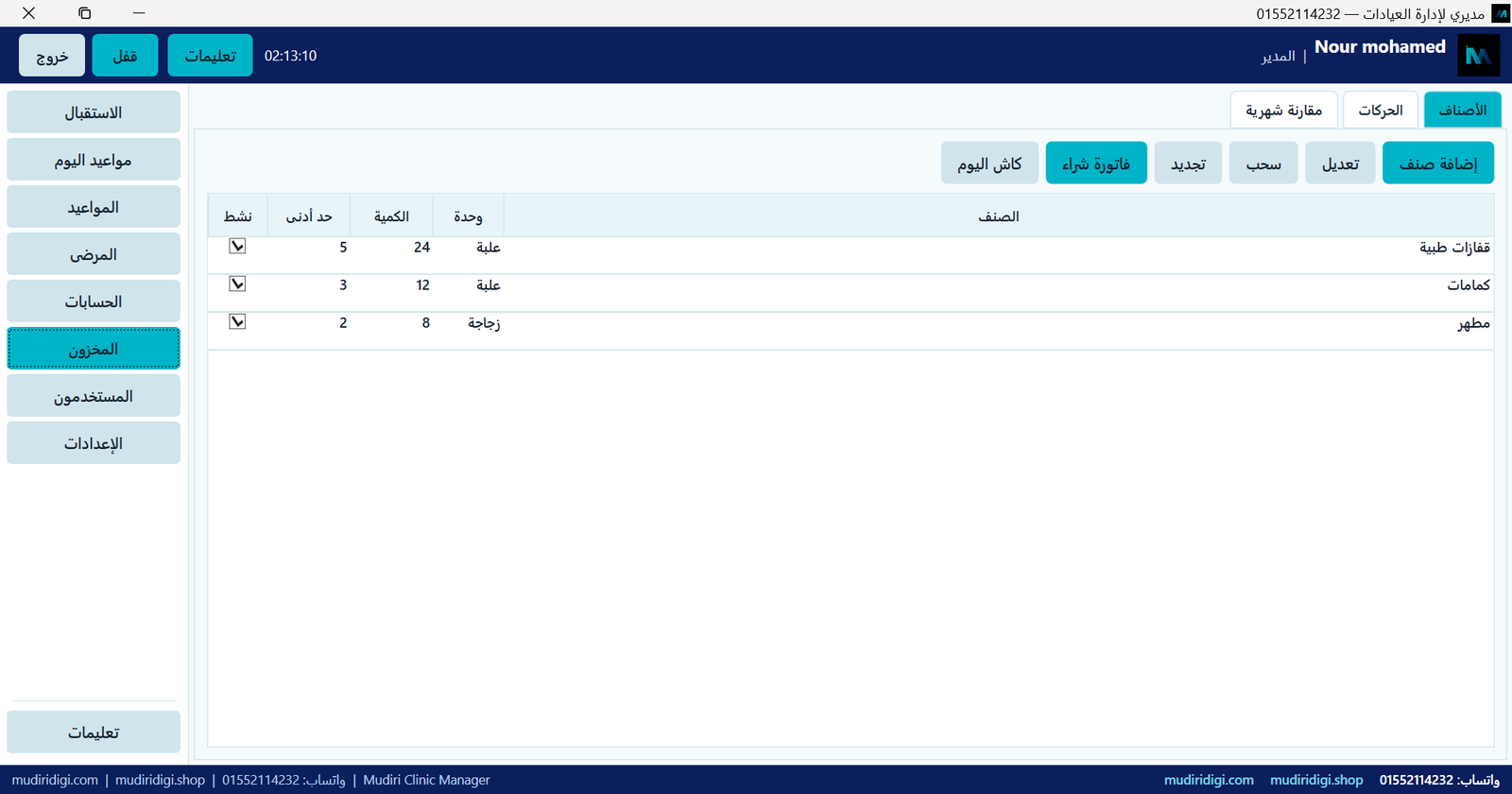
Inventory — before stock runs out
Items with quantity and minimum threshold. Built for gloves, masks, disinfectant, and any fast-moving clinic consumable.
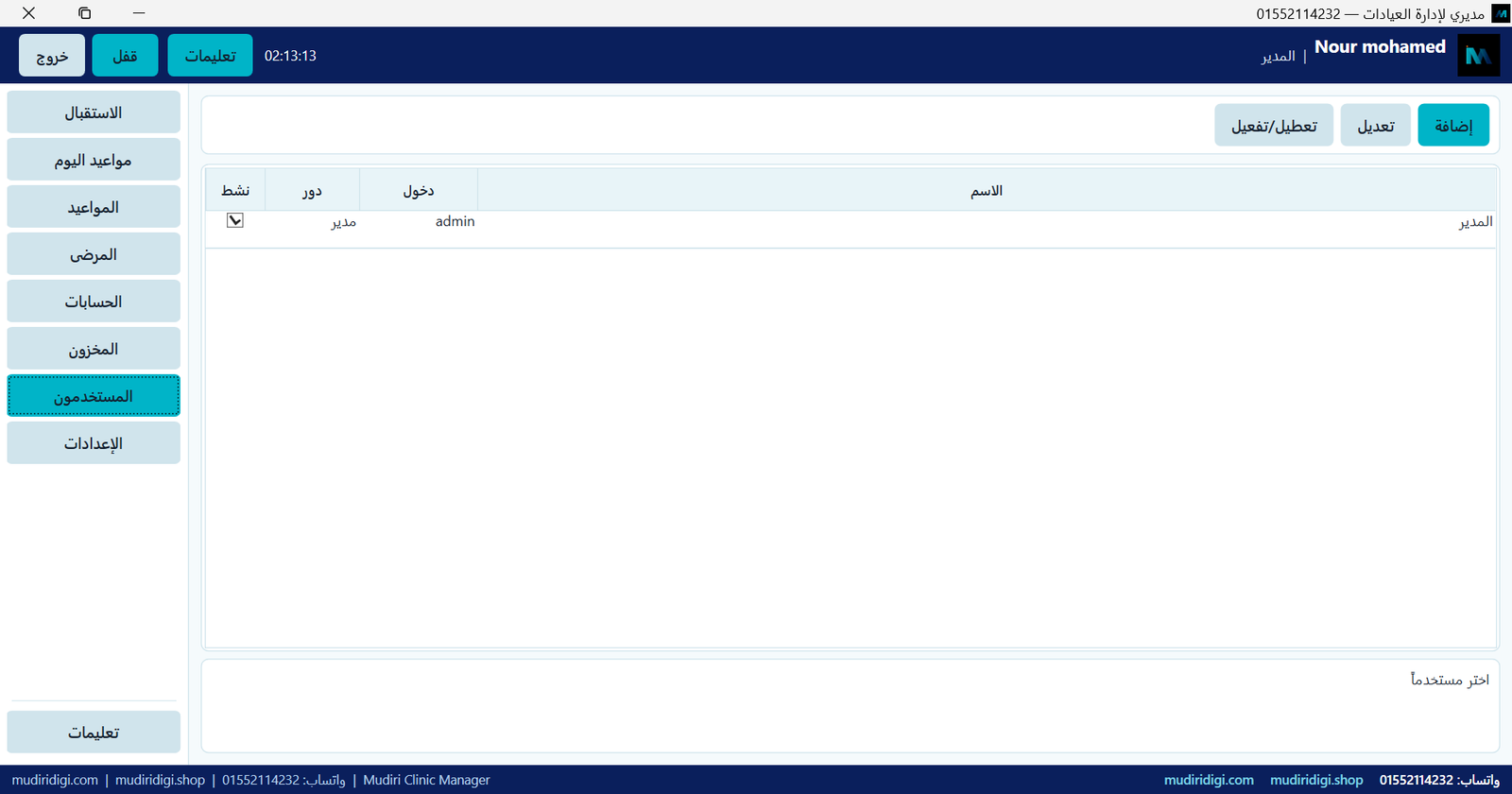
Users & roles
Clear admin account, with room to add users by role — important when reception and the doctor are not the same person or PC.
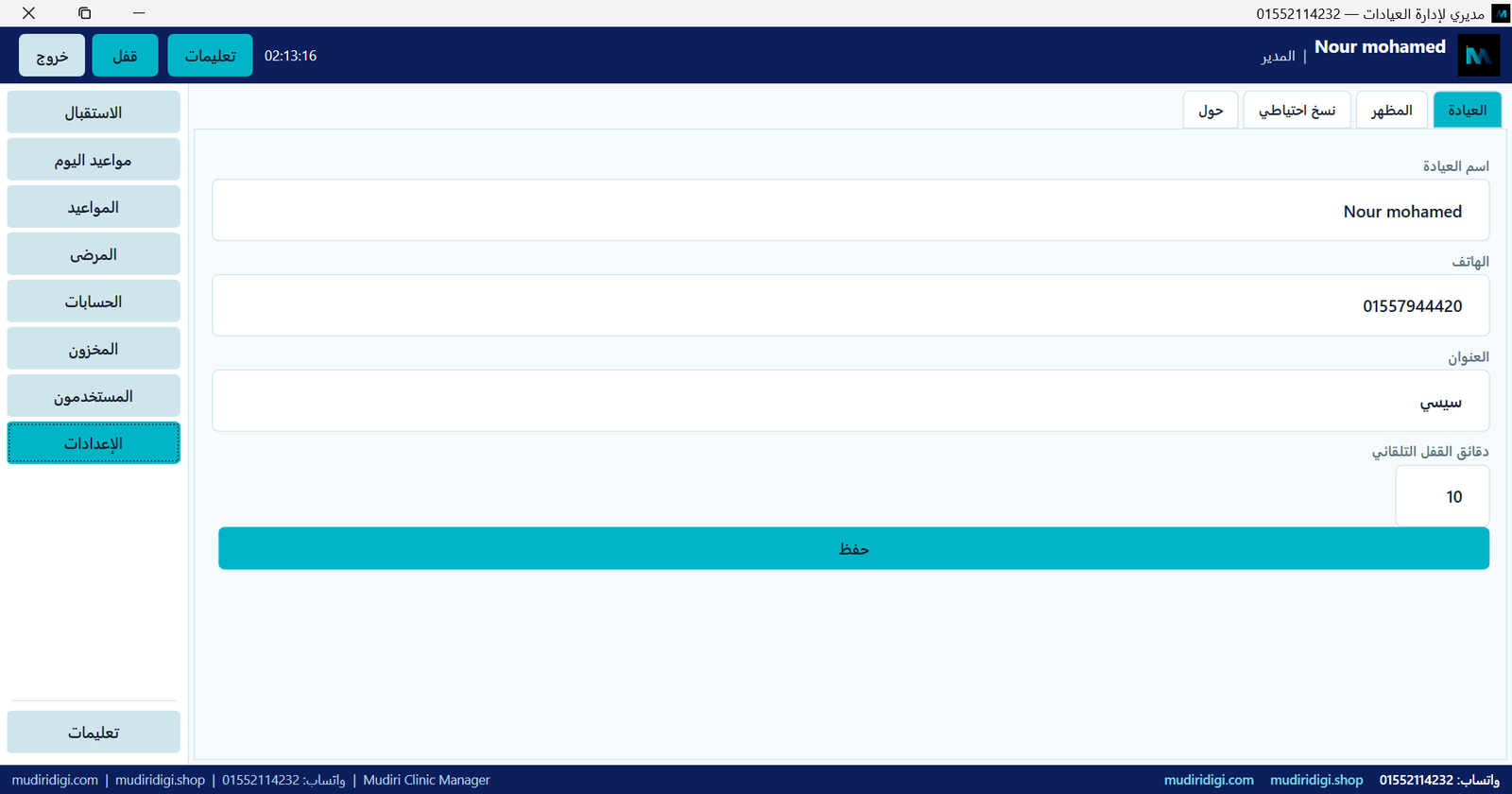
Settings — clinic profile & auto-lock
Clinic name, phone, address, and auto-lock minutes, plus appearance and backup tabs — a local install that is more than “a file on the desktop”.
Video and next step
Watch the full walkthrough at the top of this page (or on YouTube). If the screens fit your workflow, Buy Mudiri Clinic Manager on the shop — after payment you get the download and a device-bound serial activation link.
Need a custom build? Request it from the product page or via clinic solutions on mudiridigi.com.
Need a custom version?
If the ready template is not enough, we can build a version that matches your workflow.
Need a custom version?